MiniMax H3 Reference-to-Video Guide: Motion and Sound
Use MiniMax H3 reference images, videos, and audio to control identity, products, motion, camera rhythm, voice, and style without copying unwanted details.
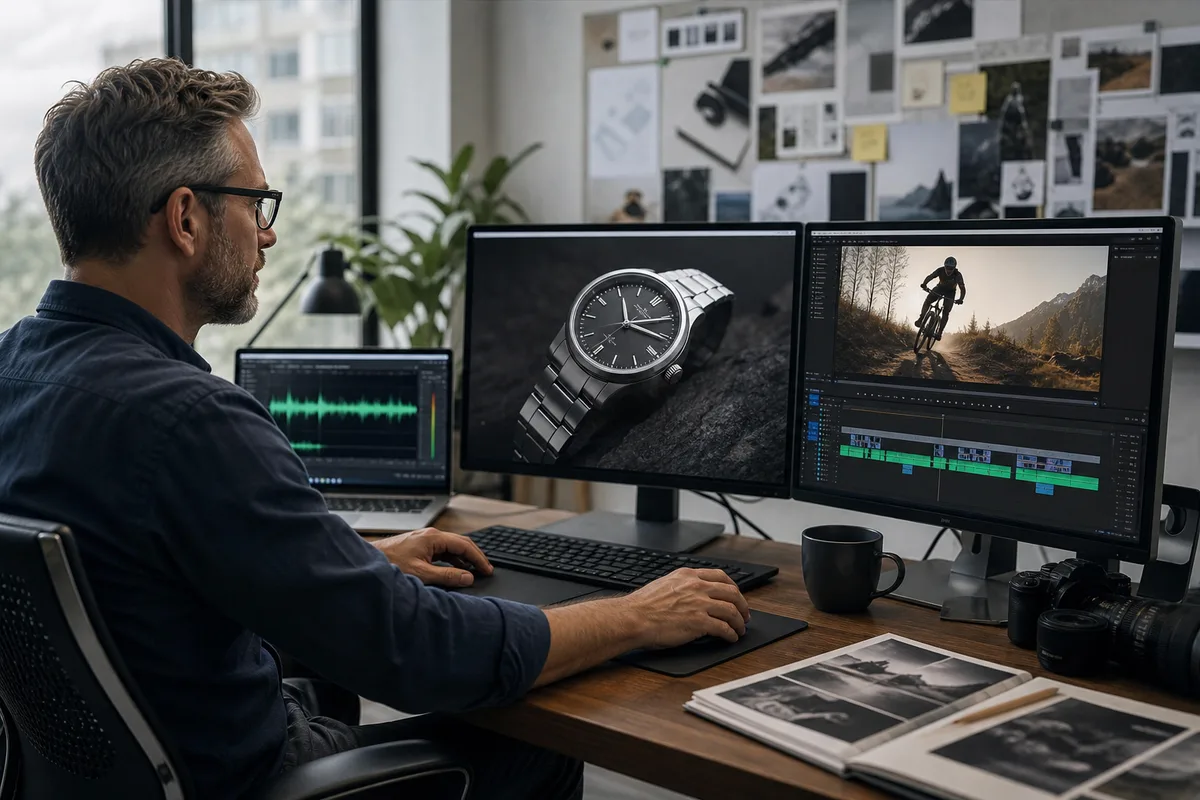
MiniMax H3 reference-to-video is a multimodal workflow that combines a required text direction with reference images, reference videos, and reference audio. Each asset should have one clearly stated job: identity, product design, wardrobe, movement, camera rhythm, voice, ambience, or music. Better results come from assigning those jobs explicitly instead of uploading many files and hoping the model guesses the relationship.
Quick answer: Use images for stable appearance, video for time-based motion or camera behavior, and audio for voice, rhythm, or sound character. In the prompt, say what to transfer and what not to copy. Reference-to-video is different from first-and-last-frame generation, and the two input modes cannot be mixed in the same MiniMax H3 V2 request.
What the reference inputs can do
The current V2 API documents up to nine reference images, three reference videos, and three reference audio files. Each reference video or audio clip must be between 2 and 15 seconds, and the combined duration of each media category is limited. The complete request also has file-size, format, dimension, and aspect-ratio rules. Check the live documentation before preparing a large upload batch because limits can change.
Reference media provides context, not an automatic instruction. A fashion clip may contain a person, clothes, a location, a camera move, and music. If you want only its movement, say so. Otherwise, unwanted attributes may leak into the generated result.
Choose the right asset for each job
| Goal | Best starting reference | Prompt instruction |
|---|---|---|
| Preserve a face | Clear reference image | Use only for facial identity and hair |
| Preserve a product | Multi-angle images | Keep geometry, material, logo placement, and proportions |
| Transfer an action | Short reference video | Follow body timing; do not copy person, clothing, or location |
| Transfer a camera move | Stable reference video | Follow camera path and pacing; rebuild the scene |
| Preserve a voice | Clean reference audio | Preserve voice character and delivery, not original words |
| Match ambience | Audio without dialogue | Use room tone or environment as the acoustic reference |
One strong image often helps more than several contradictory images. Choose sharp, well-lit references with the subject large enough to inspect. Avoid images that disagree about hairstyle, product geometry, wardrobe, or age unless the intended prompt explains the change.
Character identity workflow
For a consistent character, begin with a neutral identity image and add separate references only when they contribute information not visible in the first. A useful set may include a front or three-quarter face, a full-body wardrobe view, and one expression reference. Keep backgrounds simple when possible.
Write the roles directly:
Use reference image 1 only for the actor's facial identity and hair.
Use reference image 2 for the red jacket, black boots, and body proportions.
Do not copy either reference background.
Keep the same person, age, hairstyle, and wardrobe across every cut.
Identity can still drift during occlusion, rapid rotation, extreme expression, small faces, or multi-character scenes. Reduce the number of cuts and keep the first test visually simple. If two characters are present, define them by location and stable attributes, then avoid swapping those descriptions later.
Product and brand workflow
Product video requires stricter preservation than a mood piece. Provide clean views of shape, controls, surface finish, and label placement. State which elements cannot change. Ask for camera and lighting behavior separately from product design.
For example: “Use reference images 1–3 only for the watch geometry, crown, brushed steel finish, dial marks, and logo position. Do not redesign the hands or add text. Follow the slow clockwise orbit from reference video 1, but replace its object and background. Place the watch on wet black stone under a narrow rose highlight.”
Generated text and logos still require frame-by-frame review. If exact brand typography is critical, plan a post-production overlay rather than relying on a single generation.
Motion transfer without visual leakage
A motion reference contains more than motion. It also encodes framing, environment, subject appearance, speed, and possibly sound. Separate the desired temporal properties:
- body action and timing;
- camera path;
- cut rhythm;
- interaction with props;
- acceleration and pauses;
- direction of travel.
Then exclude the rest: “Transfer only the dancer’s arm sequence and footwork. Do not copy the dancer’s identity, clothes, stage, lighting, or music.” If the result still imports unwanted details, use a cleaner reference with a plain background or break the action into a shorter segment.
Camera and editing references
Reference video is particularly useful for camera language that is difficult to describe with one term. Instead of saying “cinematic camera,” use a clip that demonstrates the push-in, arc, handheld energy, or reveal timing. Your prompt should still identify the subject relationship: “Follow the reference camera’s low tracking path and acceleration while keeping the new motorcycle centered.”
For multi-shot structure, describe the purpose of each cut. Continuity is easier when the wardrobe, lighting, location, and audio bed remain stable. Limit early tests to two or three shots; excessive cuts hide whether a failure came from identity, planning, or motion.
Reference audio workflow
Reference audio may contribute voice character, pacing, ambience, rhythm, or music. Do not ask one file to perform every role unless that is truly intended. A clean voice clip is easier to interpret than dialogue mixed under loud music.
State whether words should change: “Preserve the speaker’s calm tone and pacing from reference audio 1, but speak the new line in the prompt.” For ambience, say “Use the café room tone and stereo width, but no intelligible background dialogue.” Read the native audio guide for dialogue and mix design.
A complete reference-to-video template
[Duration and purpose]. Create [subject] in [new setting].

Reference roles:
- Image 1: [identity or object attribute only].
- Image 2: [wardrobe, angle, or design attribute only].
- Video 1: [motion, camera, or editing rhythm only].
- Audio 1: [voice, ambience, or music only].

Action beats: First [...]. Then [...]. Finally [...].
Camera: [...]. Look: [...]. Sound: [...].
Preserve: [...]. Do not transfer: [...].
Common failures and fixes
The background is copied. Explicitly state that the reference is only for identity or motion and name the new location.
The character changes after a cut. Reduce cuts, strengthen identity and wardrobe constraints, and use clearer references.
The motion feels weak. Describe acceleration, contact, direction, and timing instead of using only “follow the motion.”
The product is redesigned. Use multiple clean angles, list protected geometry, and simplify reflections or fast movement.
The voice changes. Use cleaner audio, one visible speaker, shorter dialogue, and an explicit preservation instruction.
The request is rejected before generation. Check formats, duration, file size, dimensions, total request size, and whether first/last-frame roles were accidentally mixed with reference roles.
A disciplined test sequence
Start with one reference image and a four-second 768P output. Confirm identity or product shape. Add one motion video next. Add audio only after the visual relationship works. Keep the prompt and seed stable while changing one reference. This sequence costs less and makes each failure diagnosable.
Use the MiniMax H3 playground and select Multimodal reference when you are ready to upload assets. For interface limits and steps, read the Multimodal reference documentation. For prompt structure, continue to the MiniMax H3 prompt guide.
Primary sources
This independent workflow guide is not affiliated with MiniMax. Only use reference media you own or are authorized to process.
MiniMax H3 reference-to-video FAQ
What is MiniMax H3 reference-to-video?
Reference-to-video uses supplied images, video, or audio to guide identity, appearance, motion, camera rhythm, voice, ambience, or style in a generated result.
How many references should I use?
Use the smallest set that clearly defines the required identity, motion, sound, and visual direction; redundant or conflicting references can make control less predictable.
Can reference video control camera movement?
Yes. A reference video can guide movement and camera rhythm when the prompt explicitly states what should be transferred and what should not be copied.
How do I prevent unwanted reference details?
Assign a clear role to every reference and state exclusions for background, clothing, identity, text, sound, or motion details that should not transfer.
Categories
More Posts
MiniMax H3 Character Consistency for Multi-Shot Video
Keep MiniMax H3 characters consistent across shots with better references, identity prompts, first and last frames, continuity notes, audio, and editing.
MiniMax H3 Native Audio: Dialogue, Lip Sync, and Sound
Learn how MiniMax H3 native audio works, how to prompt dialogue and stereo sound, what to test, and how to improve lip sync and audio continuity.
MiniMax H3 Prompt Guide for Video, Camera, and Sound
Write better MiniMax H3 prompts for text-to-video, first and last frames, and multimodal references with a practical scene structure and examples.
Newsletter
Join the community
Subscribe to our newsletter for the latest news and updates