MiniMax H3 ComfyUI Guide: Setup and Local Workflow
Learn how a MiniMax H3 ComfyUI workflow is structured, what local setup requires, and when an online H3 generator is the more practical choice.
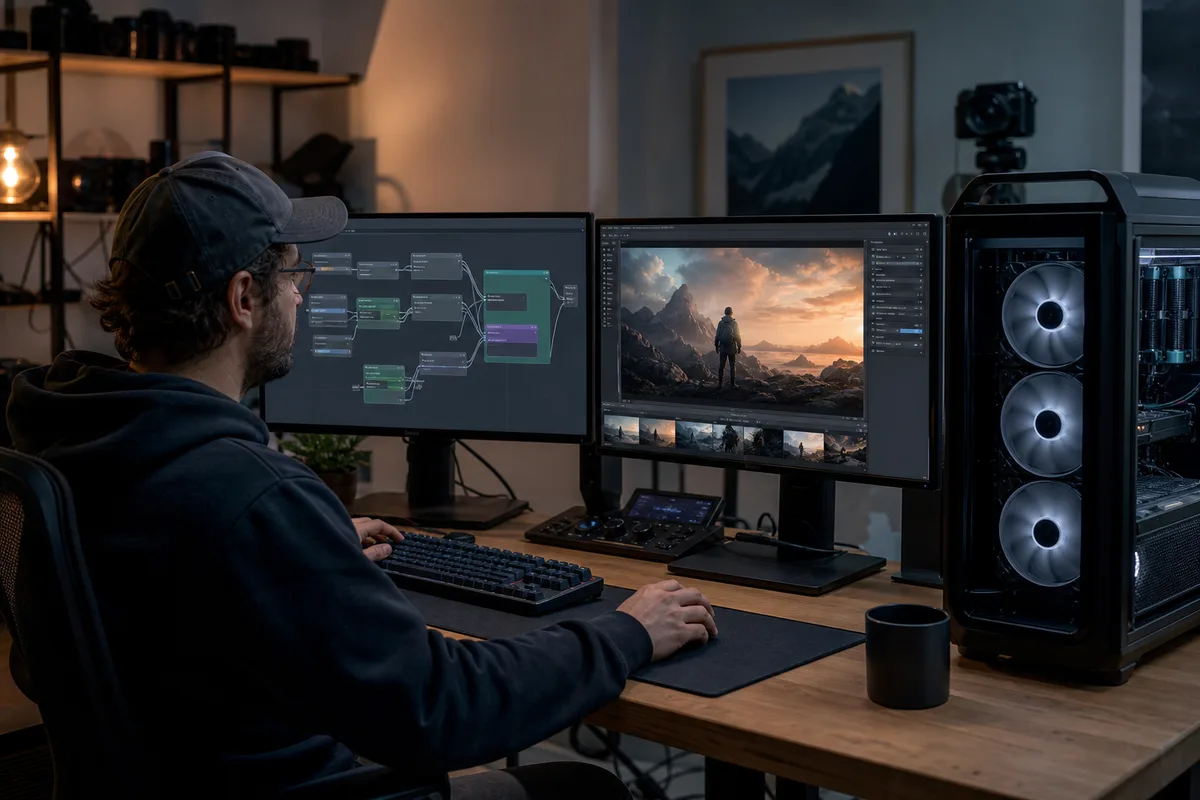
Quick answer: MiniMax H3 can be used in ComfyUI when compatible community or ecosystem nodes, matching model files, and sufficient hardware are available. ComfyUI is not required: an online workspace avoids local downloads and node maintenance, while a local workflow provides more control over files and execution.
MiniMax H3 has attracted immediate interest from ComfyUI users because it combines open-weight experimentation with a video model that understands text, images, video, and audio. That combination also makes a local workflow more demanding than a typical image-generation graph.
Status note, August 5, 2026: H3 tooling is moving quickly. Confirm node names, model filenames, checksums, and license terms in the official repositories before downloading large files. Avoid workflow bundles that include unsigned executables or ask you to disable security software.
What ComfyUI contributes to an H3 workflow
ComfyUI is a node-based AI creation engine. A graph makes each stage visible: loading models, encoding prompts, preparing reference media, sampling, decoding video, handling audio, and saving the result. ComfyUI also caches unchanged branches, so modifying a prompt or reference does not always require repeating every upstream operation. For experienced users, this transparency is the main advantage over a single Generate button.
H3 is not just text-to-video. The official MiniMax V2 API supports text, first and last frames, and multimodal reference inputs containing images, videos, and audio. A local graph therefore needs more than a checkpoint loader and sampler. It may need media loaders, resizing and normalization, role assignment for references, temporal controls, audio handling, a video decoder, and a muxing step. Exact local nodes can differ from the hosted API and may expose only the currently released model components.
Before installing anything
Start with the official MiniMax H3 Hugging Face repository, the ComfyUI repository, and any workflow linked by those maintainers. Check the H3 model card for the current file list and license. Check the ComfyUI release notes before assuming an old installation supports a newly released architecture.
Create a separate ComfyUI installation or Python environment for early H3 testing. Updating the application, PyTorch, custom nodes, and GPU libraries all at once can break workflows that already work. Save your current package list and workflow JSON first. On Windows, the official Desktop or portable package is generally easier to recover than an environment containing many unrelated custom nodes.
You should also budget disk space beyond the downloaded weights. Model files, text or vision encoders, a VAE, temporary decoded frames, audio, previews, and final videos can require substantial additional storage. Put the model directory and temporary output directory on a fast SSD if possible.
A practical MiniMax H3 ComfyUI graph
A complete graph can be understood in seven stages:
- Load the H3 components. Load only files recommended for the workflow version you are using. Similar filenames do not guarantee architectural compatibility.
- Build the instruction. Encode a prompt that separates subject, action, camera, look, timing, dialogue, sound effects, music, and constraints.
- Prepare optional references. Resize images consistently, trim video and audio references, and assign their purpose. A movement reference should not accidentally be treated as an identity reference.
- Choose output settings. Select duration, aspect ratio, resolution, seed, and any memory-saving options supported by the nodes.
- Sample the video latent. This is usually the longest and most memory-intensive stage.
- Decode and assemble frames. Decoding can create a second memory peak, so a graph that samples successfully may still fail here.
- Process audio and save. If the released local workflow supports audio, verify sample rate and synchronization before muxing the final file.
Begin with the maintainer's default graph. Change one variable at a time and keep the seed fixed while diagnosing quality. Loading a complicated community workflow before a basic generation succeeds makes troubleshooting needlessly difficult.
Text, frames, and multimodal references
For text-to-video, concentrate on one coherent shot before asking for multiple edits or cuts. For first-and-last-frame generation, make sure both images share compatible subjects, aspect ratios, lighting, and composition; otherwise the model must solve both motion and a large visual transformation.
Multimodal reference generation requires more deliberate labeling. Decide what each file contributes: identity, wardrobe, composition, camera movement, action rhythm, voice, ambience, or music. State that relationship in the prompt instead of uploading a folder of assets and expecting the model to infer every intention. The official API permits up to nine reference images, three videos, and three audio files within documented duration and size limits, but a local implementation may expose different limits.
Common installation and runtime problems
An out of memory error can happen during loading, sampling, or decoding. Reduce resolution, duration, batch size, and preview overhead before adding aggressive quantization. Close applications using GPU memory. Use ComfyUI's documented offloading options rather than random command-line flags copied from an unrelated model.
Missing-node errors mean the workflow depends on nodes not installed in your environment. Identify the repository from the workflow metadata and inspect it before installation. A shape or dtype error more often indicates mismatched model components, an outdated node implementation, or an incompatible precision mode. Black output may come from a decoder mismatch rather than the prompt.
If generation is extremely slow, check whether major components are repeatedly moving between system memory and VRAM. Offloading lets a large model run on smaller hardware, but data transfer can dominate total time. Our separate MiniMax H3 VRAM guide explains this tradeoff in more detail.
MiniMax H3 local-deployment learning path
This ComfyUI guide is the pillar page for the local-deployment cluster. Use the specialist guides below instead of treating every local question as an installation problem:
| Question | Continue with |
|---|---|
| How much GPU and system memory do I need? | MiniMax H3 VRAM requirements |
| Is a GGUF conversion real and compatible? | MiniMax H3 GGUF guide |
| Can I train or load a character/style adapter? | MiniMax H3 LoRA status |
| Which official files, revisions, and license should I inspect? | MiniMax H3 on Hugging Face |
| What does open-weight mean for local and commercial use? | MiniMax H3 open-source guide |
The pages have deliberately separate search intents. VRAM is a capacity-planning question. GGUF is a format and runtime-compatibility question. LoRA is a training and adapter-support question. Hugging Face is the authoritative file-discovery starting point. Reading them in that order prevents a common mistake: downloading a community conversion before confirming that the chosen loader, hardware, and license match the intended workflow.
Local ComfyUI versus an online H3 generator
Choose local ComfyUI when you need graph-level control, repeatable experiments, offline processing, custom research, or access to released weights without per-generation API billing. Expect model downloads, dependency maintenance, long jobs, and hardware constraints.
Choose the online route when you want to prompt immediately, use the official H3 API capabilities, avoid GPU and disk requirements, process jobs in the background, and retain generated links in an account history. The hosted route is also easier for teams that do not want every creator to maintain an identical local environment.
These are complementary approaches. A filmmaker may prototype ideas online, then reproduce selected shots locally for deeper graph experiments. A local user may use the online playground to compare the hosted 2K result with the capabilities of the currently released weights.
A safe first test
Use a four-second 768P shot with no references. Describe one subject, one action, one camera movement, and one sound environment. Confirm that loading, sampling, decoding, audio, and saving all work. Add a first frame next. Only after that should you test multiple reference modalities or higher resolution.
If your goal is simply to create rather than maintain a node graph, open the MiniMax H3 playground. You can test text-to-video, first-and-last-frame control, and multimodal references without installing ComfyUI or downloading model files.
Sources and further reading
- MiniMax H3 model repository on Hugging Face
- MiniMax H3 V2 API reference
- Official ComfyUI repository
- MiniMax H3 VRAM requirements
- MiniMax H3 GGUF compatibility
- MiniMax H3 LoRA status
- MiniMax H3 Hugging Face guide
- MiniMax H3 open-source guide
- MiniMax H3 prompt guide
This is an independent guide and is not affiliated with MiniMax or Comfy.org.
MiniMax H3 ComfyUI FAQ
Can MiniMax H3 run in ComfyUI?
MiniMax H3 can be used through community and ecosystem ComfyUI workflows when compatible nodes, model files, and sufficient hardware are available.
Is ComfyUI required to use MiniMax H3?
No. ComfyUI is a local workflow option; the online workspace can run generation without a local node graph or model download.
What should I verify before downloading a workflow?
Verify the node repository, model revision, file hashes when provided, license terms, VRAM assumptions, and whether the workflow targets the same H3 release.
When is an online workflow more practical?
An online workflow is usually more practical when local VRAM, storage, setup time, or maintenance is more costly than usage-based generation.
Categories
More Posts

MiniMax H3 VRAM Requirements: A Practical Local Hardware Guide
Understand MiniMax H3 VRAM, system RAM, storage, speed, quantization, and realistic local workflows from entry GPUs to the RTX 5090.

MiniMax H3 on Hugging Face: Files, Model Card, License, and Setup
A practical guide to the official MiniMax H3 Hugging Face page, including model files, revisions, licensing, downloads, and local workflow checks.

MiniMax H3 GGUF Guide: Quantization, Compatibility, and Safety
Learn what a MiniMax H3 GGUF conversion can and cannot do, how quantization affects VRAM and quality, and how to verify community files safely.
Newsletter
Join the community
Subscribe to our newsletter for the latest news and updates