MiniMax H3 VRAM Requirements: A Practical Local Hardware Guide
Understand MiniMax H3 VRAM, system RAM, storage, speed, quantization, and realistic local workflows from entry GPUs to the RTX 5090.
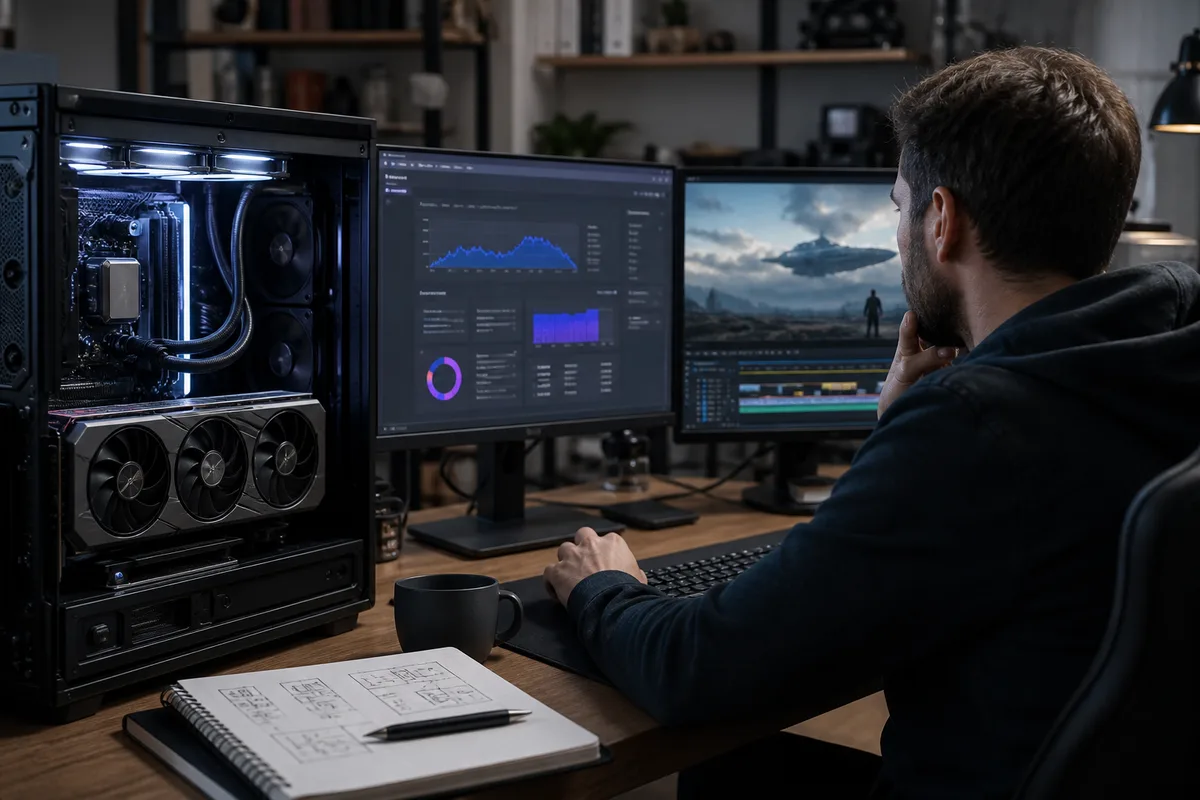
Quick answer: MiniMax H3 has no universal VRAM requirement. Memory use changes with the checkpoint, precision or quantization, resolution, frame count, reference inputs, attention implementation, and CPU offloading. A GPU benchmark is meaningful only when it states the complete workflow and settings.
Searching for MiniMax H3 VRAM requirements usually produces a misleadingly simple answer: a single number followed by “minimum” or “recommended.” Video models do not behave that way. The memory required to load weights is only one part of the job. Resolution, frame count, reference inputs, precision, attention implementation, decoding strategy, and CPU offloading can change whether the same GPU completes a generation or fails.
This guide provides a planning framework rather than pretending that one VRAM figure applies to every MiniMax H3 workflow. H3 was released very recently, so community optimizations are evolving. Treat individual benchmark posts as evidence about one configuration, not a universal promise.
Why H3 memory use is difficult to summarize
A local H3 pipeline can contain a large video transformer, text and multimodal encoders, a VAE or video decoder, audio components, conditioning tensors, and temporal latents. Some components can be unloaded between stages; others may overlap. The peak during sampling may differ from the peak during decoding. Reference video adds temporal data and can increase both memory use and execution time.
The official hosted API accepts output durations from 4 to 15 seconds at 768P or 2K and supports text, image, video, and audio input roles. Those API capabilities do not mean every local release or community graph can reproduce every setting on consumer hardware. The hosted infrastructure and the open-weight workflow should be evaluated separately.
VRAM, system RAM, and storage have different jobs
VRAM holds the components and intermediate tensors currently processed by the GPU. More VRAM usually allows fewer transfers, higher resolutions, longer clips, or less aggressive quantization.
System RAM becomes important when weights are offloaded from the GPU. A low-VRAM configuration may still need a large amount of normal memory. If system RAM fills and the operating system starts paging to disk, generation can slow dramatically or fail.
Storage holds model files, cached downloads, temporary frames, previews, and output videos. An SSD improves model loading and offload behavior, although it cannot substitute for VRAM. Leave meaningful free space rather than planning around the advertised download size alone.
A useful hardware tier framework
The following tiers are planning guidance, not official H3 requirements.
8–12 GB VRAM: experimental territory
Expect quantized components, aggressive CPU offloading, low resolution, short clips, and long wait times. A workflow may technically run while being impractical for repeated creative work. System RAM and SSD speed become especially important. Start with the smallest supported text-to-video example and avoid reference video until the base path works.
16 GB VRAM: constrained but more workable
Sixteen gigabytes provides more room for reduced-precision workflows, but it does not eliminate offloading. Resolution and duration still have a large effect. This tier may suit patient experimentation, prompt development, and occasional clips. Keep previews small and close GPU-heavy applications.
24 GB VRAM: serious enthusiast range
Twenty-four gigabytes is a more credible target for local video work, especially as optimized loaders and quantizations mature. It should not be interpreted as “all H3 modes at 2K.” Native model components, full precision, long multimodal references, and decoding can still exceed available memory. Measure peak allocation for your exact graph.
32 GB VRAM and RTX 5090-class hardware
The RTX 5090's 32 GB gives local creators substantially more headroom, but H3 remains computationally heavy. Community reports show that a job can fit and still take many minutes, particularly with reference video or higher frame counts. A 5090 is not a guarantee of real-time generation, nor does it guarantee that every component remains in VRAM. Software versions and attention kernels matter.
Multi-GPU and workstation configurations
Multiple GPUs help only when the workflow explicitly supports distributing components or computation. VRAM does not automatically combine into one shared pool. Professional configurations may improve throughput, but they introduce topology, synchronization, power, cooling, and software complexity. For most individual creators, hosted generation is simpler than building a multi-GPU H3 server.
What increases memory use
Resolution is a major driver because spatial tensors grow with pixel area. Duration increases the number of frames or temporal tokens. Reference video adds input frames that must be encoded and attended to. Multiple images and audio references add less than video in many workflows, but they are not free. Batch size multiplies demand and should remain one while diagnosing memory problems.
Precision also matters. BF16 or FP16 weights require more space than 8-bit or 4-bit representations. However, the headline file size does not equal peak runtime memory. Some operations temporarily upcast, and quantized layers may require extra buffers. A quantized checkpoint can reduce loading pressure without making every stage proportionally smaller.
A disciplined out-of-memory checklist
- Confirm the workflow and all component versions match.
- Test one four-second 768P text-to-video job.
- Set batch size to one and disable expensive live previews.
- Close browsers, games, editing software, and other GPU processes.
- Reduce duration before changing several technical flags.
- Reduce resolution and reference count.
- Enable the workflow's documented CPU offloading option.
- Try a maintained reduced-precision release with a published checksum.
- Monitor both VRAM and system RAM through the entire job.
- Record which stage fails: loading, encoding, sampling, decoding, or saving.
Do not assume an allocation error is always caused by insufficient capacity. Fragmentation, incompatible attention backends, mixed dtypes, and node bugs can produce similar symptoms.
Speed matters as much as capacity
A configuration that fits by continuously moving tens of gigabytes between RAM and VRAM may have poor iteration speed. Creative work requires multiple generations, not one successful benchmark. Estimate the time for a full workflow: loading, prompt processing, reference encoding, sampling, decoding, audio generation, and file writing.
If a four-second test takes fifteen minutes, a fifteen-second production attempt may occupy the machine for much longer and still require retries. Electricity, hardware depreciation, storage, and operator time belong in the cost comparison with an API service.
Quantization and GGUF
Quantization can lower memory requirements by representing weights at reduced precision. It may also introduce quality changes, compatibility limits, or slower operations when kernels are not optimized. “GGUF” describes a storage and runtime ecosystem; it is not a magic setting that makes every video architecture run on any GPU. Read our MiniMax H3 GGUF guide before downloading a community conversion.
How to benchmark your system
Use the same prompt, seed, duration, ratio, and resolution for every test. Record total time, peak VRAM, peak RAM, output dimensions, software versions, and whether any stage ran on CPU. Then add one variable at a time: a first frame, longer duration, reference image, reference audio, and finally reference video.
This produces useful personal requirements instead of relying on a screenshot from a different operating system and workflow. Publish complete settings if you share results; “runs on 12 GB” is not meaningful without resolution, duration, precision, and elapsed time.
When hosted H3 is the better answer
Local deployment is compelling for research, privacy-sensitive offline work, graph customization, and sustained use of released weights. Hosted generation is usually better when you want immediate access, predictable job handling, 2K API output, account history, and no hardware maintenance.
You can test the hosted workflow in the MiniMax H3 playground. For installation concepts, see the MiniMax H3 ComfyUI guide.
Sources
- Official MiniMax H3 Hugging Face repository
- MiniMax H3 V2 API input and output limits
- Official ComfyUI repository and memory-management overview
Hardware guidance changes as software improves. Verify current official and community documentation before purchasing equipment specifically for H3.
MiniMax H3 VRAM FAQ
How much VRAM does MiniMax H3 require?
There is no single universal VRAM figure because requirements depend on model revision, precision, quantization, resolution, frame count, offloading, and the selected workflow.
Can an RTX 5090 run MiniMax H3 locally?
An RTX 5090 is a strong local option, but successful runs still depend on the exact checkpoint, precision, node implementation, system RAM, and workflow settings.
Does quantization reduce VRAM usage?
Quantization can reduce memory use, but compatibility, speed, and output quality may change and should be tested with the exact workflow.
Is system RAM important for local generation?
Yes. Model loading and CPU or RAM offloading can require substantial system memory even when the GPU has enough VRAM for active computation.
Categories
More Posts
MiniMax H3 ComfyUI Guide: Setup and Local Workflow
Learn how a MiniMax H3 ComfyUI workflow is structured, what local setup requires, and when an online H3 generator is the more practical choice.

MiniMax H3 GGUF Guide: Quantization, Compatibility, and Safety
Learn what a MiniMax H3 GGUF conversion can and cannot do, how quantization affects VRAM and quality, and how to verify community files safely.

MiniMax H3 on Hugging Face: Files, Model Card, License, and Setup
A practical guide to the official MiniMax H3 Hugging Face page, including model files, revisions, licensing, downloads, and local workflow checks.
Newsletter
Join the community
Subscribe to our newsletter for the latest news and updates